The Complete Firestick IPTV Setup Guide for UK Beginners (Watch 20,000+ Channels Tonight)
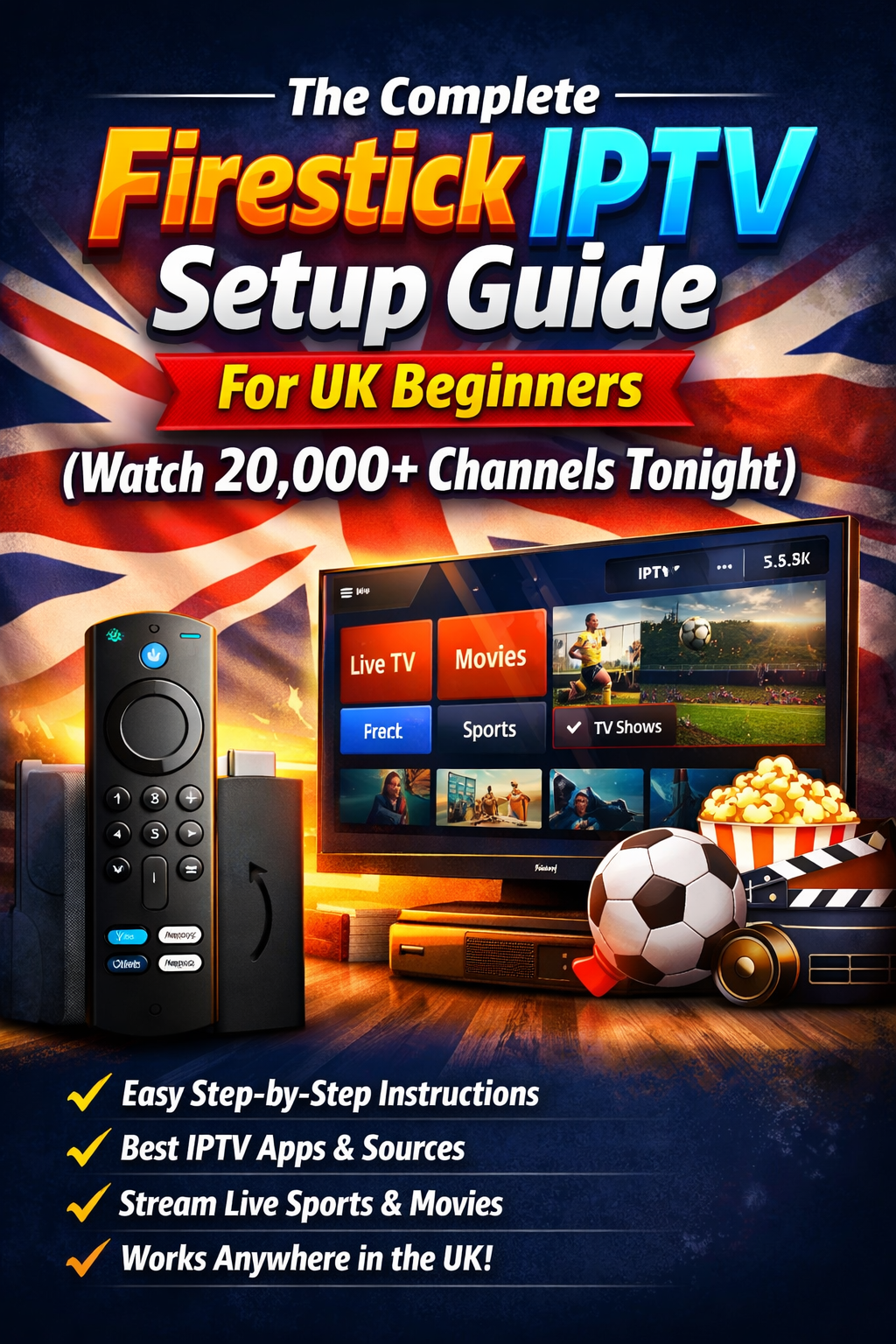
Learn how to set up IPTV on your Firestick with this complete beginner’s guide for UK users. Follow simple steps to install apps, configure settings, and start streaming live TV, movies, and more quickly and easily.
So you just got yourself an Amazon FireStick, and someone told you that you can watch thousands of live channels on it. But now you are sitting there staring at the screen about how you can start it. Do not worry. You are in the right place.
This guide is written specifically for beginners in the UK. For this you did not need any technical knowledge at all. There are very simple steps that can take you to watching 20,000+ live channels tonight. It does not matter that you know this step before or not.
What Exactly Is IPTV?
IPTV stands for Internet Protocol Television. In very simple words, it means you can watch live TV channels without any kind of satellite network, dish, or cable wire. You did not need anything to watch these unlimited TV channels. Just buy an IPTV subscription.
When you combine a Firestick with a good IPTV subscription, you will get:
- 20,000+ live UK and international channels
- All major UK channels like BBC, ITV, Channel 4, Channel 5
- Sky Sports, TNT Sports, and BT Sport are each and every UK sports channel included.
- Thousands of top-trending movies and web series are also available.
- Kids' channels, news, international content and more
And the best part is there is no dish on your roof. You did not need any proper setup for this. The only thing you need to do is buy a basic IPTV package and enjoy unlimited streaming.
What You Need Before You Start
Before starting the setup, make sure you have these things ready:
An Amazon Fire Stick: First, you need the Amazon Fire Stick. You can use any model you want.
A stable internet connection: Ensure that you have a stable internet connection. An about 2 to 3 MB/s speed is more than enough for this setup.
An IPTV subscription: Go to the official IPTV selling platform and buy a package from there.
Step-by-Step IPTV Setup on Amazon Firestick
By following the given simple steps, you can easily make your setup on the Amazon Fire Stick:
Step 1: Turn On Apps from Unknown Sources
Your Firestick blocks outside apps by default. You can change it by doing this:
- Go to the Settings from the home screen
- Tap on My Fire TV
- Go into developer options.
- Switch Apps from Unknown Sources to ON
Done. After doing this, your Fire Stick allows you to install the apps from the unknown sources. Thousands of people do this every day.
Step 2: Get the Downloader App
- Go back to your home screen
- Hit the search icon and type in "Downloader."
- Install it. It is free and sits right there in the Amazon App Store
This is the app that fetches and installs your IPTV player for you. You can imagine this app as a middle man.
Step 3: Install Your IPTV Player
- Open Downloader
- Type in the app URL that firestickpackages.co.uk sends you after you sign up
- Press "Go" and let it download
- Press Install once it completes
- Then hit "Open," and you are in the player now.
Step 4: Enter Your Login Details
After subscribing, your provider will send you one of these things:
- An M3U URL: just copy and paste it straight into the player.
- Xtream Codes : This could be a server address, a username, and a password
Step 5: You Are Live
This is the complete process of adding you to your Fire Stick. It just takes only a few seconds if you follow the exact steps and do not make any mistakes.
Best IPTV Apps to Use on Firestick in the UK
Not sure which app you need to install. In 2026, these are the top trends in the UK:
| Column 1 | Column 2 | Column 3 |
App Name | Best For | Free to Use |
| IPTV Smarters Pro | Beginners — clean and simple layout | ✅ Yes |
| TiviMate | Best EPG guide display | ✅ Yes |
| GSE Smart IPTV | Works with multiple formats | ✅ Yes |
| Lazy IPTV | Fast and lightweight | ✅ Yes |
If this is your first time, you need to go with IPTV Smarters Pro. It is the easiest to use, and all the new users start their streaming journey from there.
What Internet Speed Do You Need for Smooth Streaming?
Your broadband speed makes a big difference to how your streams look and feel. Here is what you actually need:
Stream Quality | Minimum Speed Required |
| Standard Definition (SD) | 1 Mbps |
| High Definition (HD) | 3 Mbps |
| Full HD (FHD) | 4 Mbps |
| 4K Ultra HD | 8-10 Mbps |
The good news is that most UK homes are using the standard BT, Virgin Media, or Sky Broadband. These platforms can easily provide this speed every time. This means that even with a slow internet speed, your streaming quality will not be affected.
Common Beginner Mistakes to Avoid
Some new users make these very scary mistakes. But if you prevent these mistakes, you can get more privileges and big headaches later.
Skipping the free trial: Always test the service before paying for a full plan.
Buying from dodgy providers : Make sure you are buying the package from the official websites. Avoid fake and scammy sites.
Forgetting to enable Unknown Sources: Your IPTV app simply will not install without this step turned on. Make sure you have done this step already.
Frequently Asked Questions
Does IPTV work on all Firestick models?
Yes, IPTV can work on any Firestick model. You did not need to have any specific model for this.
Can my family use IPTV on different devices at the same time?
Yes, you can use it on many devices at the same time. But it also depends on which type of package you are using. If you buy a premium package, you can use it on unlimited devices.
How long does the full setup take?
The complete setup is very easy and just takes less than a minute. But for this you need to follow the given steps in this guide.
Comments (0)
No comments yet. Be the first to share your thoughts!